Shizuku Wireless Debugging, Setup in 3 Steps, No PC, No Root (2026)
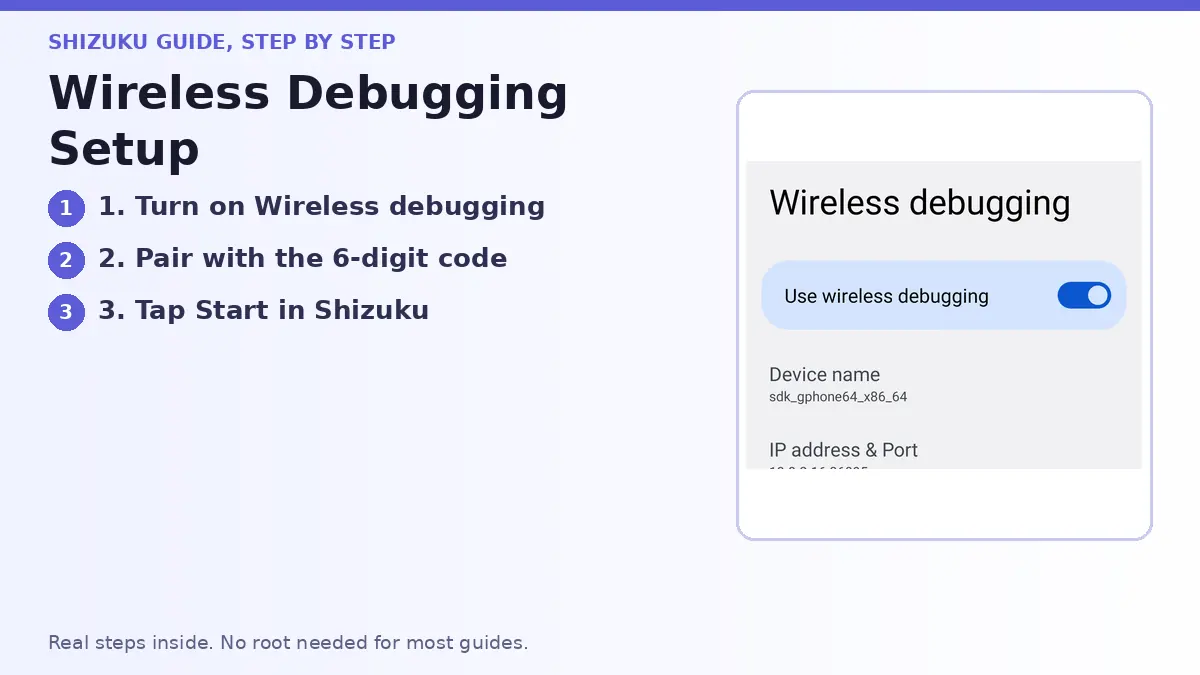
Shizuku wireless debugging is the normal way to start Shizuku without a PC or root, on Android 11 and newer. The whole job takes about three minutes when the pairing code behaves: enable Developer Options, pair your phone with itself over Wi-Fi using a 6-digit code, tap Start, and approve your first app.

Written by Omer Akbar, Author & SEO Expert - Fact-checked by Editorial Reviewer, 23 Nov 2026 - How we fact-check
Quick Answer, Shizuku wireless debugging
Shizuku wireless debugging starts Shizuku without a PC or root on Android 11+. Enable Developer Options and Wireless debugging, tap Pairing in Shizuku, tap "Pair device with pairing code" and enter the fresh 6-digit code from the notification, then tap Start. After a reboot, start it again, unless you use trusted Wi-Fi auto-start, root mode, or a fork with a watchdog.
Step 1: Enable Developer Options & Wireless Debugging
Open Settings About phone, tap Build number seven times until Developer Options appears. Then open Developer Options, turn on USB debugging and Wireless debugging. On Xiaomi you may also need "USB debugging (Security settings)", see the Xiaomi guide. On Samsung, turn off Auto Blocker first, see the Samsung guide.
Step 2: Pair with the 6-digit code
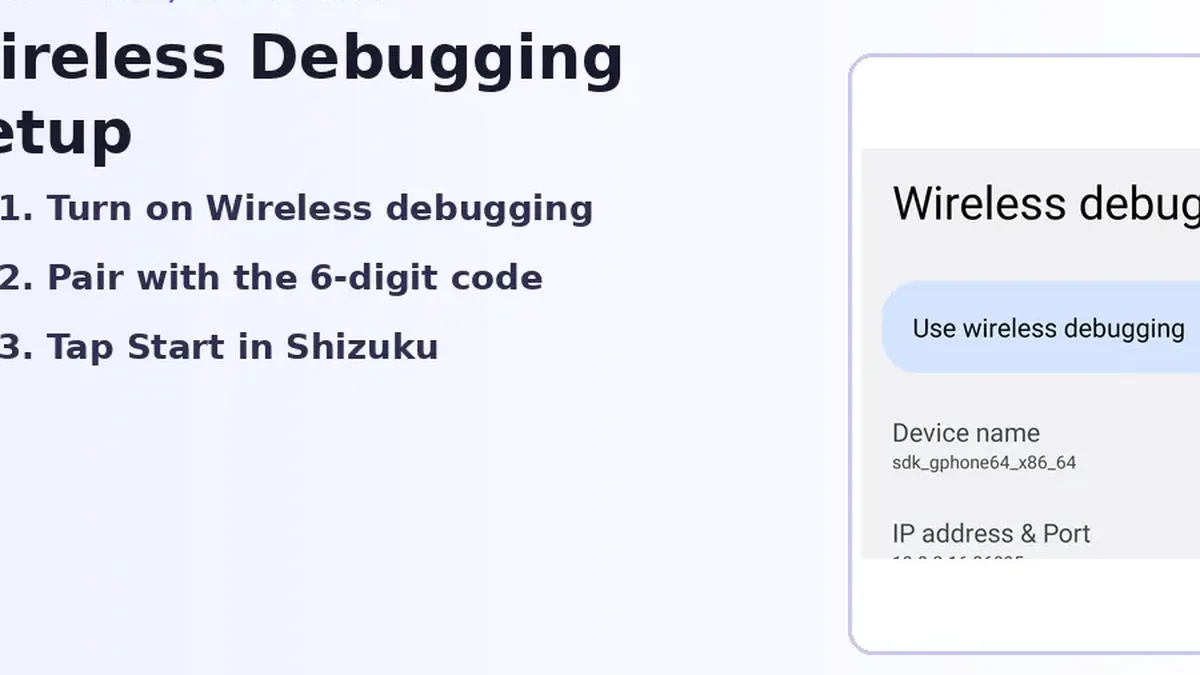
In Shizuku, tap Pairing, then open Wireless debugging and tap "Pair device with pairing code". Enter the 6-digit code from the notification inside Shizuku, not in Settings. Codes expire fast. If the code box never appears, check notification permission (Android 13+) and, on MIUI, switch notification style to Android style. Full fixes: pairing code not working.
Step 3: Start Shizuku & authorise your first app
Tap Start. When Shizuku says "Shizuku is running", open your first app, Canta, Hail or App Ops, and approve the prompt. Approval is per app and can be revoked from the Authorised Apps list. After a reboot, Shizuku stops in ADB mode, use trusted Wi-Fi auto-start for a lasting fix.
With a PC (ADB) and without Wi-Fi
On Android 10 and below, or when pairing keeps failing, start Shizuku from a PC, full guide: Shizuku PC ADB setup. Without Wi-Fi, wireless debugging cannot pair; forks add TCP mode, covered on Shizuku without Wi-Fi. On Android TV and GrapheneOS, see Android TV & GrapheneOS.
Frequently Asked Questions
How do I set up Shizuku wireless debugging without a PC?+
Enable Developer Options and Wireless debugging, pair with a fresh 6-digit code inside Shizuku, then tap Start and approve your first app.
Why is my Shizuku pairing code not working?+
Usually a stale code, a missing code box, or a VPN blocking pairing. Generate a fresh code and enter it at once, all 8 fixes are on the pairing code page.
Can I start Shizuku wireless debugging without Wi-Fi?+
No, pairing needs Wi-Fi. Use a PC over ADB, or a fork with TCP mode. See Shizuku without Wi-Fi.
Does Shizuku wireless debugging work on Android 17?+
Pairing is blocked on Android 17 for the official build by Local Network Protection. Use a fork, see Shizuku on Android 17.
Why does Shizuku stop after every reboot?+
By design in ADB mode, the server is not started automatically. Restart it, or use trusted Wi-Fi auto-start, root mode, or a fork watchdog.
About this guide
Shizuku wireless debugging: start Shizuku without a PC or root on Android 11+ in 3 steps, enable, pair with the 6-digit code, tap Start. Plus PC ADB fallback and no-Wi-Fi answers. This guide is part of shizukuapk.pages.dev, an informational resource about Shizuku APK by Xingchen & Rikka (RikkaApps). It does not host the APK file, downloads link to the official GitHub releases page.
Version, size and hash figures are dated 23 Nov 2026, re-check the GitHub releases page before installing.
Related Guides
Fact-Check, Verified 23 Nov 2026
Fact-checked by Editorial Reviewer (Reviewer & Editor), 23 Nov 2026 - Written by Omer Akbar. The claims on this page, versions, dates, hashes and compatibility statements, were checked against the primary sources on our Sources page, following our Fact-Checking Policy and classified under our Editorial Policy (Official / Reported / Rumor). Found an error? Tell us and it will be re-verified and corrected on this page.