Shizuku on Android TV, GrapheneOS & Quest 2, What Works and What Breaks
You pointed Shizuku at your TV, your GrapheneOS phone, or your Quest 2, half expecting it to fail, and the internet gave you nothing but shrugs. Fair question, mixed answers. Some of these genuinely work, some break in ways nobody documented. This post goes platform by platform: what pairs, what starts, what breaks, and where the honest answer is simply do not bother.

Written by Omer Akbar, Author & SEO Expert - Fact-checked by Editorial Reviewer, 23 Nov 2026 - How we fact-check
Quick Answer, Shizuku on Android TV
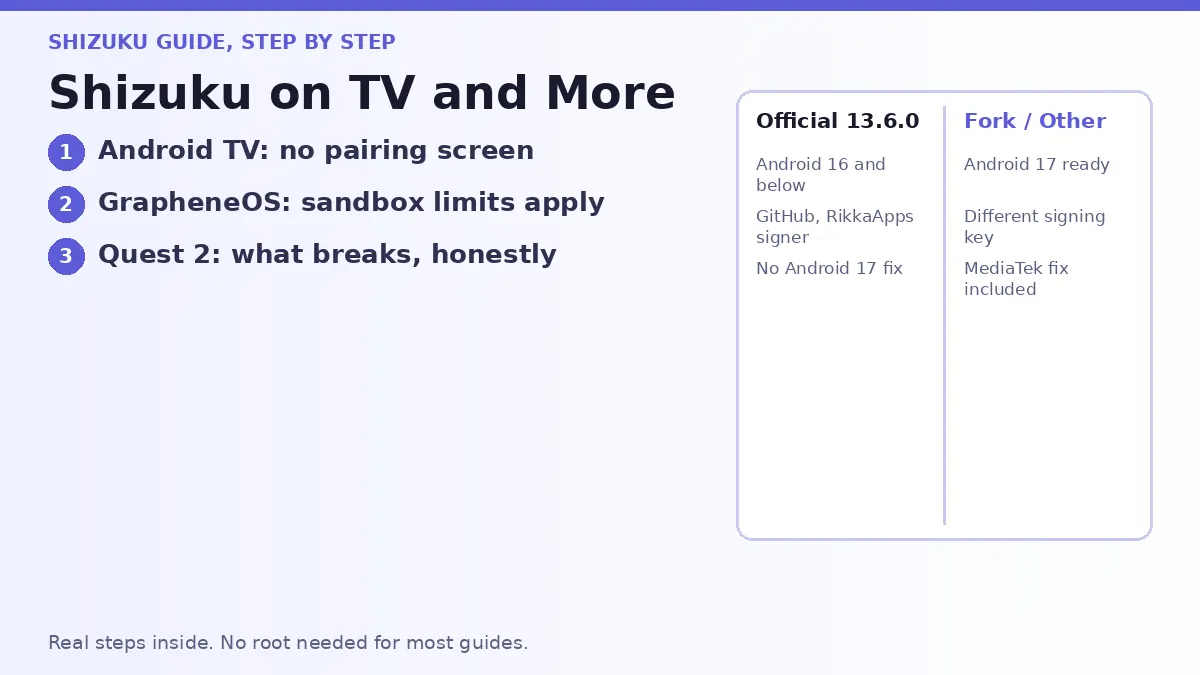
Shizuku on Android TV works best through a fork: thedjchi 13.7.0 and Shizuku-Next add TV/VR support that the official 13.6.0 build does not target, and the same applies to Quest 2. On GrapheneOS, turn off the VPN before pairing, VPN breaks mDNS pairing and leaves Shizuku stuck on "Searching for pairing service". Everything else follows the normal wireless-debugging setup.
Why the official build is a phone app, and the forks are not
Shizuku on Android TV starts with a mismatch: the official 13.6.0 build is designed for phones, touch-first screens, a pairing flow that assumes you can juggle notifications and settings, and no TV interface. thedjchi 13.7.0 and Shizuku-Next add TV and VR support on top of the same open-source code, which is why every route on this page runs through a fork. Same API, same shell privileges, a front end a television can actually drive.
That support matters because the use cases are real. On a TV box, Shizuku-powered apps can debloat the manufacturer's preinstalled apps, control components, and manage permissions that the TV settings never expose. On Quest 2, the same shell access is what VR tinkerers want for system-level tweaks. Neither needs root, and neither device is easy to root in the first place.
| Device | Build to use | Pairing note | Status |
|---|---|---|---|
| Android TV / TV box | thedjchi 13.7.0 or Shizuku-Next (TV support) | Same Wi-Fi network; a keyboard or phone remote helps | Works via forks; official build targets phones |
| Quest 2 | A fork with VR support | Same Wi-Fi network | Experimental, thin coverage, fork-sourced facts |
| GrapheneOS (phone) | Official 13.6.0 (Android 16 or lower) or a fork | VPN must be OFF while pairing, VPN breaks mDNS | Works; pairing is the only special case |
Setting up on Android TV, step by step
1. Install a fork build on the TV or box, sideload the APK from the fork's GitHub releases page, since this site links GitHub only. Uninstall any official build first; the signing keys differ. 2. Enable Developer Options and Wireless debugging in the TV's settings. 3. Pair from the same Wi-Fi network using the 6-digit code flow, the steps mirror the phone flow in the wireless debugging guide. 4. Start the server, then install and approve your first supported app.
The remote is the awkward part. Pairing codes and settings screens are usable with a D-pad, just slower, and a phone-based remote app or a USB keyboard makes the one-time setup much less painful. After setup, day-to-day use barely touches the Shizuku interface at all, the server runs, and the apps you approved do the visible work.
Quest 2: what is realistic, and what is not
Quest 2 headsets run a fork of Android, and the forks' VR support is the path in, the same install, pair and start flow, through a VR-friendly interface. Treat it as experimental. Coverage of Shizuku on Quest is thin everywhere, this site's fork facts come from the fork projects themselves, and Meta changes the underlying system with its own update cadence, which can shift what works without notice.
What this page will not do is dress that up as a tested recommendation. If you try it, keep expectations at "shell-level access for supported apps", keep the headset's own recovery options in mind, and do not remove system components you cannot identify, a headset with no easy recovery path is the wrong place to learn debloating. The safe order from the phone world applies twice over here: freeze first, uninstall later, if at all.
GrapheneOS: the VPN rule that breaks pairing
GrapheneOS is the opposite problem: Shizuku itself works, but pairing can fail completely while a VPN is active. Pairing depends on mDNS discovery on the local network, and a VPN routes or blocks that traffic, the pairing notification stays stuck on "Searching for pairing service" and no code ever arrives. It looks like a Shizuku bug. It is the VPN doing its job.
The fix is short: turn the VPN off, pair, tap Start, confirm Shizuku is running, then turn the VPN back on. The running server is local and does not care about the VPN afterwards. If pairing still fails with the VPN off, work through the pairing code fixes, and remember that GrapheneOS's per-network and permission controls give you more switches that can interfere than stock Android does.
GrapheneOS after pairing: what to expect
Once it is running, Shizuku on GrapheneOS behaves as it does on any Android phone: approved apps get shell-level access (UID 2000), the server stops at reboot in ADB mode, and you restart it the same way. GrapheneOS users tend to care about the trust question more than most, so be precise about it: the risk is never Shizuku itself, it is which apps you authorise, because an approved app can do anything the shell can do.
Approve only apps you trust, from sources you trust, and review the Authorised Apps list now and then, revoking takes one tap. The full reasoning, including what never to authorise, is in the safety guide. And if there is no Wi-Fi where the device lives, the PC start works here too: PC ADB setup.
Which build should each device get?
For a TV or a Quest 2, pick the fork by temperament: thedjchi 13.7.0 if you want the stable, paused build, Shizuku-Next if you want active development and the newest fixes. For GrapheneOS on a phone, the official 13.6.0 build is fine on Android 16 and below, the VPN rule is about pairing, not about which build you run. On Android 17, every device on this page needs a fork, for the same hidden-API reason as phones.
One rule survives every combination: one build at a time. Forks and the official build sign with different keys, Android refuses to layer them, and authorisations reset when you switch. The head-to-head details are in official vs forks, and the actively developed fork has its own page: Shizuku-Next.
Frequently Asked Questions
Does Shizuku work on Android TV?+
Yes, best through a fork. thedjchi 13.7.0 and Shizuku-Next add TV support that the official 13.6.0 build does not target, including an interface a remote can drive. Install the fork, enable Wireless debugging, pair over the same Wi-Fi network, and start the server. The official build is a phone app; on a TV it is the wrong tool even if it installs.
Does Shizuku work on Quest 2?+
Through the forks' VR support, yes, the same install, pair and start flow as Android TV. Treat it as experimental: coverage is thin everywhere, the facts come from the fork projects themselves, and Meta's own system updates can change what works. This site does not present Quest 2 support as a tested recommendation, and debloating a headset is a freeze-first activity.
Why does Shizuku pairing fail on GrapheneOS?+
Because of the VPN. Wireless-debugging pairing discovers the pairing service over mDNS on the local network, and an active VPN routes or blocks that traffic completely, the notification stays stuck on "Searching for pairing service" and no code ever arrives. Turn the VPN off, pair, start Shizuku, then turn the VPN back on; the running server is unaffected.
Does Shizuku work on GrapheneOS at all?+
Yes. Pairing is the only special case, the VPN rule. Once the server is running, Shizuku on GrapheneOS behaves as on any Android phone: authorised apps get shell-level access, the server stops at reboot in ADB mode, and you restart it the same way. The trust rule is unchanged too: approve only apps you trust, because approval is per app and revocable.
Which build should I use on a TV?+
A fork, thedjchi 13.7.0 for a stable, paused build, or Shizuku-Next for active development and newer fixes. Both add the TV support the official build lacks. Uninstall any official build first, because the signing keys differ and Android will refuse to install one over the other. Your app authorisations reset after switching, so re-approve your apps once.
Can I set up Shizuku on a TV without Wi-Fi?+
Not by pairing, wireless debugging needs the TV and the pairing service on the same Wi-Fi network. The alternative is a PC: connect by USB where the hardware allows it and run the PC ADB start, which needs no network at all. If neither is available, a hotspot from a phone creates a local network that pairing accepts.
About this guide
Shizuku on Android TV, GrapheneOS and Quest 2: fork TV/VR support, the GrapheneOS VPN pairing break, and the honest limits of the official build off phones. This guide is part of shizukuapk.pages.dev, an informational resource about Shizuku APK by Xingchen & Rikka (RikkaApps). It does not host the APK file, downloads link to the official GitHub releases page.
Version, size and hash figures are dated 23 Nov 2026, re-check the GitHub releases page before installing.
Related Guides
The short version, steps only
No time to read the whole post? Do exactly this, in this order:
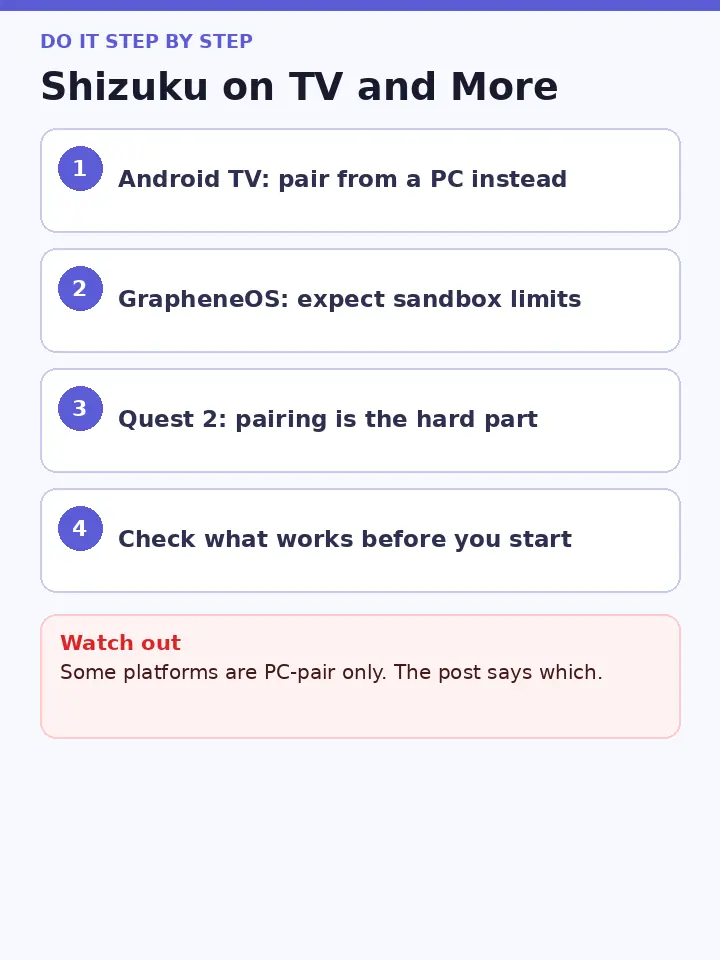
- Android TV: pair from a PC instead
- GrapheneOS: expect sandbox limits
- Quest 2: pairing is the hard part
- Check what works before you start
Fact-Check, Verified 23 Nov 2026
Fact-checked by Editorial Reviewer (Reviewer & Editor), 23 Nov 2026 - Written by Omer Akbar. The claims on this page, versions, dates, hashes and compatibility statements, were checked against the primary sources on our Sources page, following our Fact-Checking Policy and classified under our Editorial Policy (Official / Reported / Rumor). Found an error? Tell us and it will be re-verified and corrected on this page.