Shizuku PC ADB Setup, Start Shizuku with a Computer (Windows, Mac & Linux)
Shizuku PC ADB setup is the original way to start Shizuku, and it is still the only non-root path on Android 10 and below, and the fallback when wireless debugging will not pair. You connect the phone to a computer once, run one command copied from the app itself, and Shizuku's server starts with shell privileges.

Written by Omer Akbar, Author & SEO Expert - Fact-checked by Editorial Reviewer, 23 Nov 2026 - How we fact-check
Quick Answer, Shizuku PC ADB setup
Shizuku PC ADB setup works like this: install Platform Tools on Windows, Mac or Linux, connect the phone, run adb devices to authorise the computer, then copy the start command from "View command" inside Shizuku and run it. Do not copy the old start.sh command from a 2024 guide, it was removed in 13.6.0.
Who needs the PC method, and who does not
Shizuku PC ADB setup exists for one simple reason: wireless debugging only arrived with Android 11. On Android 7, 8, 9 or 10 there is no pairing screen on the phone, so the computer is not a fallback, it is the only non-root way in. The same applies when wireless debugging exists but refuses to cooperate: a router that blocks device-to-device traffic, a phone whose pairing service never appears, or a brand skin that hides the setting.
And on Android 11 or newer? The PC method still works, and some people prefer it. It needs no Wi-Fi network at all, it does not depend on mDNS, and the authorisation survives on the computer until you revoke it. If you already keep Platform Tools on your machine for other work, this is honestly the calmer setup. Everyone else should start with the wireless debugging guide and keep this page as the backup plan.
What you need before you start
Three things: a computer running Windows, Mac or Linux, a USB cable that carries data (some cheap cables only charge), and the Shizuku app already installed on the phone from the official GitHub releases page. On the computer you need Android Platform Tools, the small official package that contains adb. Download it from Google's Android developer site, unzip it, and open a terminal or Command Prompt inside that folder.
One practical warning before you begin: full "ADB installer" bundles from random download sites are a known malware path, and you do not need one. Platform Tools alone is enough, it is a small download, it needs no installation wizard, and you can delete the folder when you are done. If a site asks you to install a driver suite, a browser extension or a "PC cleaner" first, close the tab.
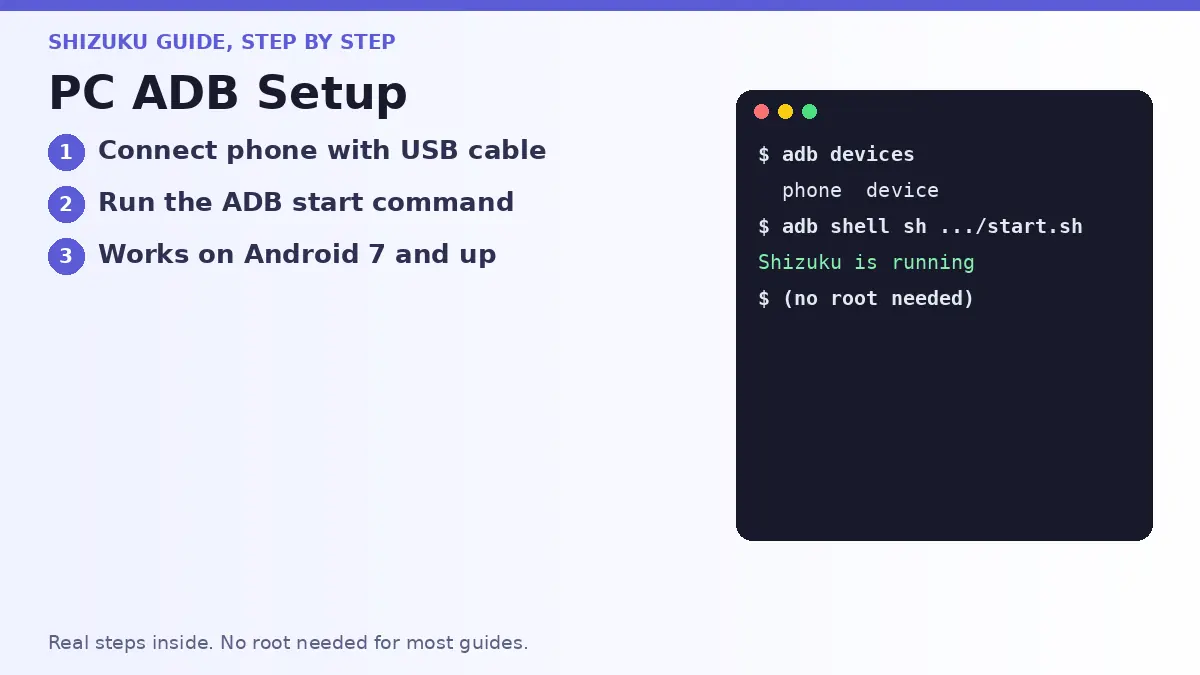
Step by step: from cable to "Shizuku is running"
1. On the phone, open Settings, tap the build number seven times to unlock Developer Options, then turn on USB debugging. 2. Connect the phone by USB and set the USB mode to "File transfer" if the computer does not see the device. 3. In the terminal, run adb devices. The phone shows an authorisation prompt, tick "Always allow" and tap Allow. The device should now appear as device, not unauthorized.
4. Open Shizuku on the phone and tap "View command" on the start screen. Copy the exact command it shows, it looks like adb shell ... libshizuku.so and it is specific to your install. 5. Paste it into the terminal and run it. 6. Shizuku switches to "Shizuku is running". Now open your first supported app and approve the prompt. That approval is per app, and you can revoke it later from Shizuku's Authorised Apps list.
The start command changed in 13.6.0, do not copy old guides
The old adb shell sh /sdcard/Android/data/moe.shizuku.privileged.api/files/start.sh form was removed in 13.6.0. Guides written in 2024 still show it, and it simply fails on the current build. The new command loads libshizuku.so from the installed APK path, and that path changes per install, which is exactly why the app generates it for you under "View command". Copying a stranger's command from a forum cannot work, because their path is not your path.
But what if the command runs and nothing happens? Read the terminal output before you retry. "No such file" means the copied command is stale or the app was reinstalled since, open "View command" again and copy it fresh. A success line with no running server usually means Developer Options got switched off mid-session, which kills the server. Turn it back on, re-run the command, and leave Developer Options alone while Shizuku runs.
| Problem | Likely cause | Fix |
|---|---|---|
| Device shows "unauthorized" | Authorisation prompt not accepted on the phone | Unlock the phone, accept the prompt, tick "Always allow", run adb devices again |
| No device listed at all | Charge-only cable, wrong USB mode, or missing Windows driver | Swap the cable, set USB to File transfer, install the maker's USB driver on Windows |
| "No such file" from the start command | Old start.sh command copied from a 2024 guide | Copy the fresh command from "View command" inside Shizuku 13.6.0 |
| Server starts, then dies | Developer Options switched off, or the brand's battery killer stopped it | Leave Developer Options on; set Shizuku battery to No restrictions |
Windows, Mac and Linux: the small differences
The flow is identical on all three systems; only the friction points differ. On Windows, the phone may need the manufacturer's USB driver before adb devices sees it, Samsung, Xiaomi and Google all publish their own. On Mac, there is no driver step; if the device does not appear, the cable is the usual suspect. On Linux, a device stuck on no permissions usually means your user is not in the plugdev group or udev rules are missing, fix the permission rather than running adb as root.
After you unplug: reboots, timeouts and keeping it alive
Shizuku keeps running after you unplug the cable. It stops when the phone reboots, when the system kills the server, or when you stop it yourself, that is by design in ADB mode, because nothing was installed into the system. After a reboot you run the same command again; the computer stays authorised, so the second run takes under a minute.
Two settings make the PC path less annoying. On Android 11+, turn on "Disable adb authorization timeout" in Developer Options so the computer's authorisation does not expire after a week of inactivity. And if you reboot often, look at trusted Wi-Fi auto-start on Android 13+, which restarts Shizuku on your home network without any cable at all.
When the PC path is blocked
On Xiaomi HyperOS 4 with Android 17, PC ADB debloat itself can be blocked with an "only root can delete system app" error, in that case on-phone Canta plus Shizuku is the working path, with a fork build: see the Android 17 guide. On Samsung phones, Auto Blocker can interfere with ADB authorisation, the fix is in the Samsung guide. Still stuck after that? Work through the not working fixes in order; most PC failures are a driver, a charge-only cable, or a stale command.
Frequently Asked Questions
How do I start Shizuku with a PC?+
Install Android Platform Tools on the computer, enable USB debugging on the phone, connect by USB and run adb devices to authorise the computer. Then open Shizuku, tap "View command", copy the exact start command it shows, and run it in the terminal. Shizuku switches to "Shizuku is running" within seconds, and you can unplug the cable.
Why does the old start.sh command not work?+
The start.sh form was removed in Shizuku 13.6.0. The new start command loads libshizuku.so from the installed APK path, and that path is different on every phone and every install. That is why the app generates the command for you under "View command", copying a command from an old guide or a forum post cannot work on your device.
Can I set up Shizuku without wireless debugging?+
Yes. The PC ADB method works on every Android version Shizuku supports, from Android 7.0 upwards, and it is the only non-root start method on Android 10 and below, where wireless debugging does not exist. On Android 11 and newer it is an alternative to wireless debugging, useful when a router blocks pairing or no Wi-Fi is available.
Does Shizuku stay running after I unplug the PC?+
Yes. Once the server is started, the cable and the computer are no longer needed, Shizuku runs on the phone until it reboots, the system kills the server, or you stop it yourself. After a reboot, reconnect and run the same copied command again; the computer stays authorised, so a restart takes under a minute.
Is a PC needed on Android 11+?+
No. Android 11 and newer can start Shizuku with wireless debugging alone, in about three minutes, with no computer and no cable. The PC method on those versions is a fallback: it helps when pairing fails, when the network blocks device-to-device traffic, or when you simply prefer a wired setup that does not depend on your router.
Which cable and USB mode should I use?+
Use a data-capable USB cable, many bundled and cheap cables only charge, and adb cannot see the phone through them at all. Connect, then set the USB mode to "File transfer" if the device does not appear. On Windows, install the phone maker's USB driver if the device is still missing; Mac and Linux need no driver.
About this guide
Shizuku PC ADB setup: start Shizuku from a computer with Platform Tools on Windows, Mac or Linux, the Android 10 and below path, the pairing fallback, and the new 13.6.0 start command. This guide is part of shizukuapk.pages.dev, an informational resource about Shizuku APK by Xingchen & Rikka (RikkaApps). It does not host the APK file, downloads link to the official GitHub releases page.
Version, size and hash figures are dated 23 Nov 2026, re-check the GitHub releases page before installing.
Related Guides
Fact-Check, Verified 23 Nov 2026
Fact-checked by Editorial Reviewer (Reviewer & Editor), 23 Nov 2026 - Written by Omer Akbar. The claims on this page, versions, dates, hashes and compatibility statements, were checked against the primary sources on our Sources page, following our Fact-Checking Policy and classified under our Editorial Policy (Official / Reported / Rumor). Found an error? Tell us and it will be re-verified and corrected on this page.